Python Setup Guide
You’ll work with preconfigured Codespaces, Jupyter Notebooks, or Google Colab in this course. No local installation is required. This guide is for anyone who wants a local Python environment.
This guide walks through installing Python on Windows (via WSL2) and macOS using uv (the recommended tool) or conda as an alternative. It also explains virtual environments, how to set up VSCode and PyCharm, and how to verify your installation.
Table of Contents
- Why Virtual Environments?
- Choosing a Tool: conda vs uv
- Windows Setup (WSL2)
- macOS Setup
- Creating and Using Environments
- Testing Your Setup
- IDE Setup: VSCode and PyCharm
- Troubleshooting
Why Virtual Environments?
When you install a Python package globally, it’s available everywhere on your machine - which sounds convenient, but causes problems the moment two projects need different versions of the same package.
A concrete example:
- Your capstone project uses
geopandas 0.12(which requirespandas 1.5) - A new tutorial you downloaded uses
pandas 2.0
If both point to the same global Python, installing pandas 2.0 will break the first project. A virtual environment solves this by giving each project its own isolated Python with its own packages.
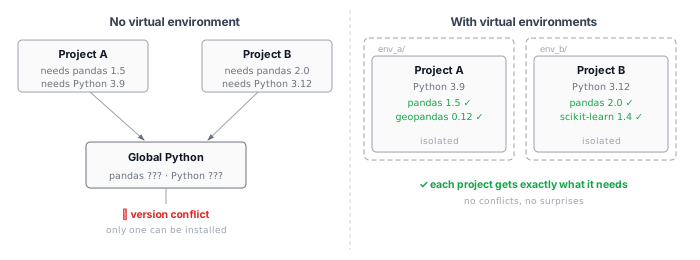
Without a virtual environment, two projects can't coexist if they need different package versions.
Think of each virtual environment as a fresh, self-contained container. You can have as many as you need, and deleting one doesn’t affect anything else on your system.
Choosing a Tool: uv vs conda
Two tools are commonly used to manage Python environments. Here’s how they compare:
| uv | conda (Miniforge) | |
|---|---|---|
| Best for | Everything, including geospatial | Alternative when conda-only packages are needed |
| Speed | Very fast | Slower to resolve |
| Package source | PyPI | conda-forge (default) |
| Environment creation | uv venv |
conda create -n myenv |
Recommendation for this course: Use uv. It’s fast, handles geospatial packages like geopandas, shapely, and rasterio without issues, and keeps your workflow simple. conda is a solid alternative if you already know it or need a package that’s only available on conda-forge.
Both tools are covered in the Creating Environments section. You only need one.
Windows Setup (WSL2)
WSL2 (Windows Subsystem for Linux 2) gives you a real Linux environment inside Windows. All Python work for this course should happen inside WSL - not in the Windows Python installer.
Step 1: Enable WSL2
Option A - via Windows Settings (recommended for Windows 11)
- Open Settings → System → Optional features → More Windows features
- Check both Windows Subsystem for Linux and Virtual Machine Platform
- Click OK and restart when prompted
Screenshot: Windows Features dialog with “Windows Subsystem for Linux” and “Virtual Machine Platform” both checked
Option B - via PowerShell (works on Windows 10 build 19041+ and Windows 11)
Open PowerShell as Administrator and run:
wsl --install
This installs WSL2 and Ubuntu in one step. Restart when prompted.
If you see an error about virtualization, you may need to enable it in your BIOS/UEFI settings. Search for your laptop model + “enable virtualization BIOS.”
Step 2: Set Up Ubuntu
After restarting, open Ubuntu from the Start menu (or search for it). The first launch will ask you to create a Linux username and password - these are separate from your Windows credentials.
Screenshot: Ubuntu terminal first launch, showing username/password prompt
Update the package index before installing anything:
sudo apt update && sudo apt upgrade -y
Step 3: Install Your Python Tool
Option A: uv (recommended)
curl -LsSf https://astral.sh/uv/install.sh | sh
source ~/.bashrc
Verify:
uv --version
Option B: conda (Miniforge)
Miniforge is a minimal conda installer that uses the conda-forge channel by default. It’s smaller and more open than the full Anaconda distribution.
# Download the installer
wget https://github.com/conda-forge/miniforge/releases/latest/download/Miniforge3-Linux-x86_64.sh

# Run it
bash Miniforge3-Linux-x86_64.sh
Follow the prompts, accept the license, and answer yes when asked to initialize conda. Then reload your shell:
source ~/.bashrc
Verify:
conda --version
macOS Setup
Step 1: Install Homebrew (if you don’t have it)
Homebrew is the standard package manager for macOS. Open Terminal and run:
/bin/bash -c "$(curl -fsSL https://raw.githubusercontent.com/Homebrew/install/HEAD/install.sh)"
Follow the prompts. On Apple Silicon (M1/M2/M3), Homebrew installs to /opt/homebrew - the installer will tell you to add it to your PATH.
Step 2: Install Your Python Tool
Option A: uv (recommended)
brew install uv
Or using the install script:
curl -LsSf https://astral.sh/uv/install.sh | sh
Verify:
uv --version
Option B: conda (Miniforge)
brew install miniforge
conda init "$(basename "${SHELL}")"
Close and reopen Terminal, then verify:
conda --version
Creating and Using Environments
With uv
uv has two modes of use. Use the project workflow for anything you’ll share or reproduce - it creates a lock file that pins every dependency exactly. Use the quick workflow for ad-hoc scripts or notebooks.
Project workflow (recommended)
Initialize a new project in your folder:
uv init my-project
cd my-project
This creates pyproject.toml and a .venv automatically. Add packages:
uv add pandas geopandas matplotlib seaborn jupyter
uv add installs the package, records it in pyproject.toml, and updates uv.lock - a precise lock file that pins every dependency and sub-dependency. Anyone can recreate your exact environment with:
uv sync
Remove a package (uv also cleans up unused transitive dependencies):
uv remove some-package
Activate the environment to run scripts directly:
source .venv/bin/activate # Linux / macOS / WSL
Your prompt will show (.venv) when active. Deactivate with deactivate.
Commit both
pyproject.tomlanduv.lockto Git. Anyone who clones your repo can runuv syncand get an identical environment.
Quick workflow (scripts / notebooks)
If you just want an isolated environment without a full project structure:
uv venv                       # creates .venv using system Python
uv venv --python 3.11         # pin a specific Python version
source .venv/bin/activate
uv pip install pandas geopandas matplotlib seaborn jupyter
Install from an existing file:
uv pip install -r requirements.txt
uvresolves and installs packages much faster than pip - a full geospatial stack (pandas,geopandas,matplotlib,jupyter) takes a few seconds instead of several minutes.
With conda
Create an environment named cp255 with Python 3.11:
conda create -n cp255 python=3.11
Activate it:
conda activate cp255
Your terminal prompt will now show (cp255) to indicate which environment is active.
Install packages:
conda install pandas geopandas matplotlib seaborn jupyter
Deactivate when done:
conda deactivate
Reproduce an environment from a file:
# From a YAML file (conda-style)
conda env create -f environment.yml

# From a requirements.txt
pip install -r requirements.txt
List all your environments:
conda env list
Remove an environment:
conda remove -n cp255 --all
Testing Your Setup
Save this as test_setup.py in any folder, activate your environment, and run it:
import platform
import pandas as pd
import geopandas as gpd
import matplotlib.pyplot as plt
import seaborn as sns

def test_packages():
    data = pd.DataFrame({
        "category": ["A", "B", "C"],
        "values": [10, 20, 30]
    })
    sns.barplot(x="category", y="values", data=data)
    plt.title("Test Plot")
    plt.savefig("test_plot.png")
    print("Plot saved to test_plot.png")

def system_report():
    print(f"OS: {platform.system()} {platform.version()}")
    print(f"Python: {platform.python_version()}")
    print(f"pandas: {pd.__version__}")
    print(f"geopandas: {gpd.__version__}")

if __name__ == "__main__":
    test_packages()
    system_report()
Run it:
python test_setup.py
If you see a version printout and test_plot.png is created, your environment is working.
IDE Setup: VSCode and PyCharm
VSCode with WSL
VSCode has first-class WSL support through the Remote - WSL extension. This means you edit files inside Linux but the UI runs on Windows.
Step 1: Install VSCode on Windows
Download from code.visualstudio.com and install. The installer will add code to your PATH automatically.
Step 2: Install the WSL extension
In VSCode, open the Extensions panel (Ctrl+Shift+X) and search for WSL (published by Microsoft). Install it.
Screenshot: VSCode Extensions panel with the “WSL” extension (by Microsoft) shown and an Install button
Step 3: Open a folder from WSL
In your Ubuntu terminal, navigate to your project folder and run:
code .
VSCode will reopen connected to WSL. You’ll see WSL: Ubuntu in the bottom-left status bar.
Screenshot: VSCode with “WSL: Ubuntu” indicator in the bottom-left corner
Step 4: Select your Python interpreter
- Open the Command Palette (
Ctrl+Shift+P) - Type Python: Select Interpreter
- Choose the interpreter from your conda or uv environment
For uv (inside your project folder):
./.venv/bin/python
For conda, the path will look like:
~/miniforge3/envs/cp255/bin/python
Screenshot: VSCode interpreter picker showing the
.venvenvironment selected
Useful extensions to install:
- Python (Microsoft) - required
- Jupyter - for
.ipynbnotebooks - Pylance - type checking and autocomplete
VSCode on macOS
No WSL needed. Open your project folder in Terminal and run code . - VSCode opens directly. Then follow Step 4 above to select your interpreter.
PyCharm
PyCharm is a full-featured Python IDE. UC Berkeley students can get the Professional edition for free through JetBrains Education.
Connect PyCharm to WSL (Windows)
- Open File → Settings → Project → Python Interpreter
- Click the gear icon → Add Interpreter → On WSL
- Select your WSL distribution and point to the Python binary in your conda or uv environment
Connect PyCharm to a uv environment (macOS)
- Open File → Settings → Project → Python Interpreter
- Click Add Interpreter → Add Local Interpreter → Virtualenv Environment → Existing
- Navigate to
.venv/bin/pythoninside your project folder
Screenshot: PyCharm interpreter settings showing
.venvenvironment selected
Troubleshooting
conda: command not found after installation
The installer needs to update your shell config. Run:
source ~/.bashrc      # WSL / Linux
source ~/.zshrc       # macOS with zsh
If that doesn’t help, add conda to your PATH manually:
export PATH="$HOME/miniforge3/bin:$PATH"
conda activate does nothing
Run conda init bash (or conda init zsh on macOS), then restart the terminal.
geopandas import error about missing GDAL/PROJ
This can happen if you’re on an older system. Make sure your environment is active and reinstall:
uv pip install --upgrade geopandas
If the error persists, the issue is likely a missing system library. On WSL/Ubuntu:
sudo apt install libgdal-dev libgeos-dev libproj-dev
uv pip install geopandas --no-binary :all:
WSL2 can’t connect to the internet
Try restarting the WSL network:
# In PowerShell (Windows)
wsl --shutdown
Then reopen Ubuntu.
Package conflicts when using pip inside conda
Always activate your conda environment before running pip, and prefer conda install when the package is available on conda-forge:
conda activate cp255
conda install pandas            # preferred
pip install some-other-package  # only when unavailable via conda
Old Python 2.x on macOS
macOS ships with Python 2 in older versions. Check what python resolves to:
which python    # should point to your conda/uv env
python --version
If it shows Python 2.x, your PATH isn’t set correctly. Using conda or uv and activating your environment will fix this - they put the right python first in your PATH.